A smart platform that analyzes building plans and checks them against the Saudi Building Code to detect violations and issues in minutes
Emtithal is a Saudi AI-powered platform that enables engineers and architectural firms to review building plans and verify compliance with the approved Saudi Building Code automatically and efficiently.
Instead of manual reviews that can take days, the platform analyzes plans, detects violations, and suggests fixes within minutes — providing precise regulatory references from the building code for every issue found.
The platform supports uploading PDF files and architectural drawings, and displays results in an interactive interface featuring side-by-side original and corrected file viewers, a detailed violations list, and an AI agent to answer your questions.
Create a new account or sign in to your existing one
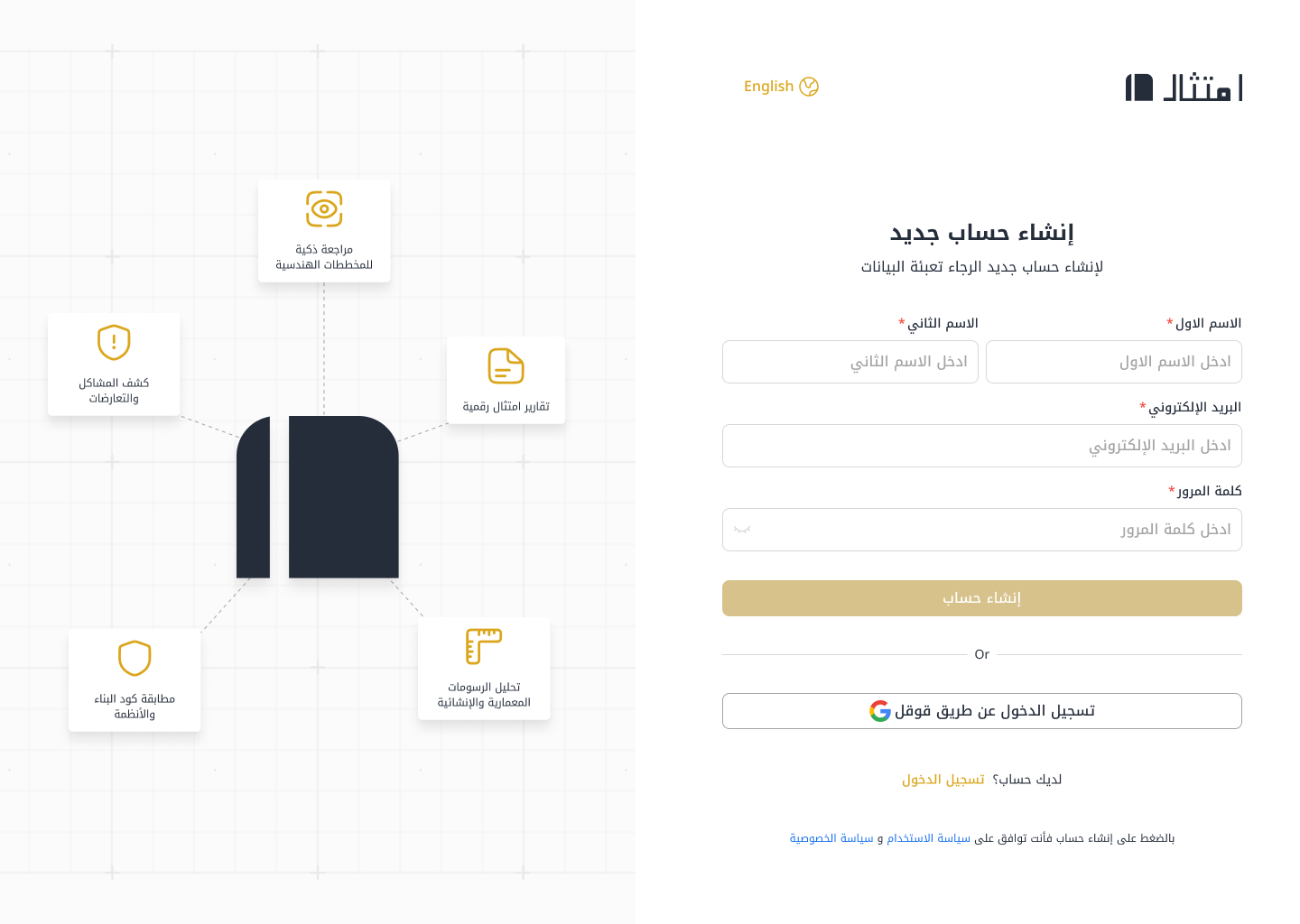
Enter your first name, last name, email, and password to create your account. You can also sign up directly with your Google account in one click.
Once all fields are filled, the "Create Account" button becomes active.
Clear error messages appear below each field when data is invalid.
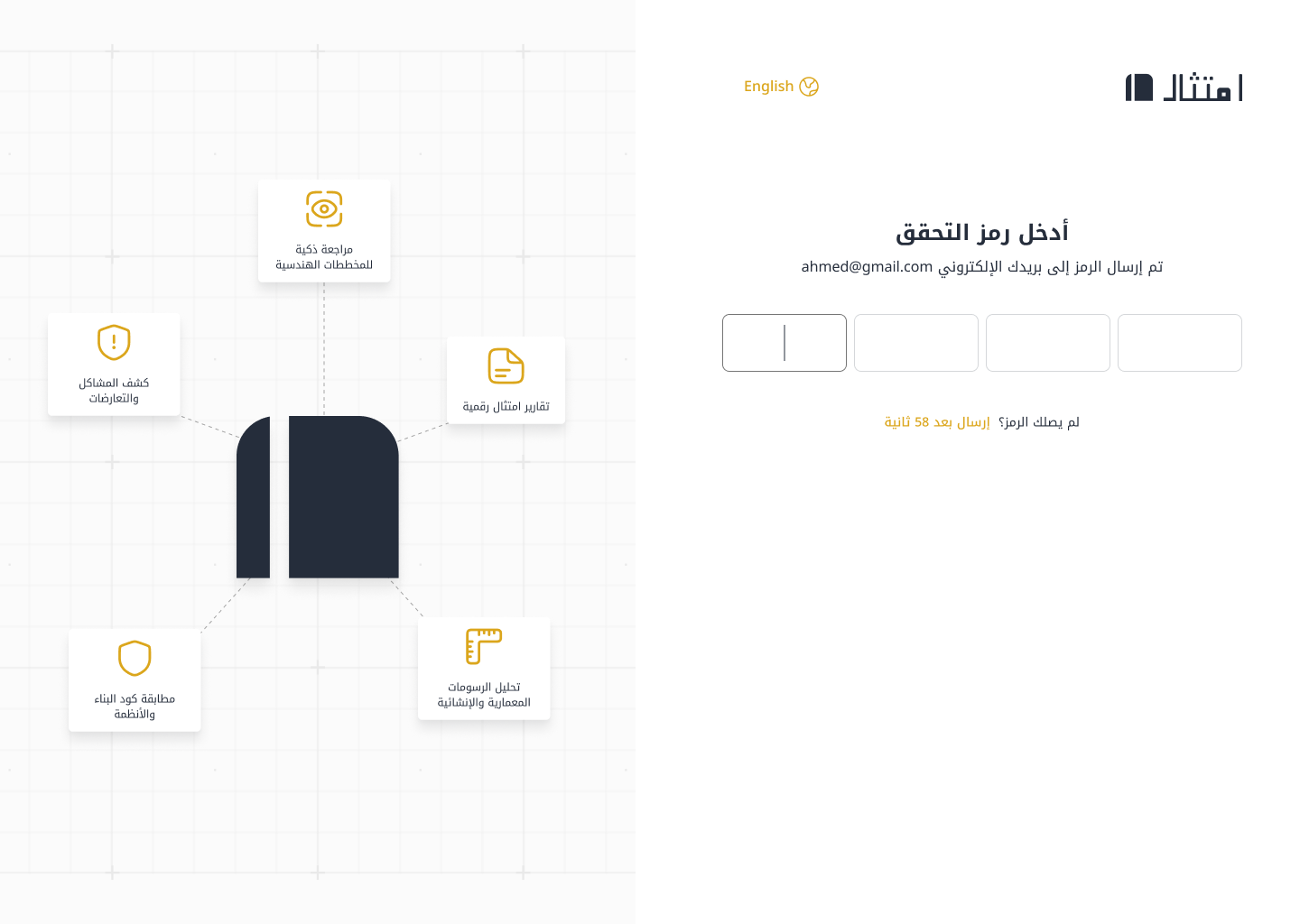
After signing up, a 4-digit verification code is sent to your email. Enter the code to verify your identity and activate your account.
Once all four digits are entered, verification happens automatically.
An error message appears with the option to retry.
After the countdown expires, you can request a new code.
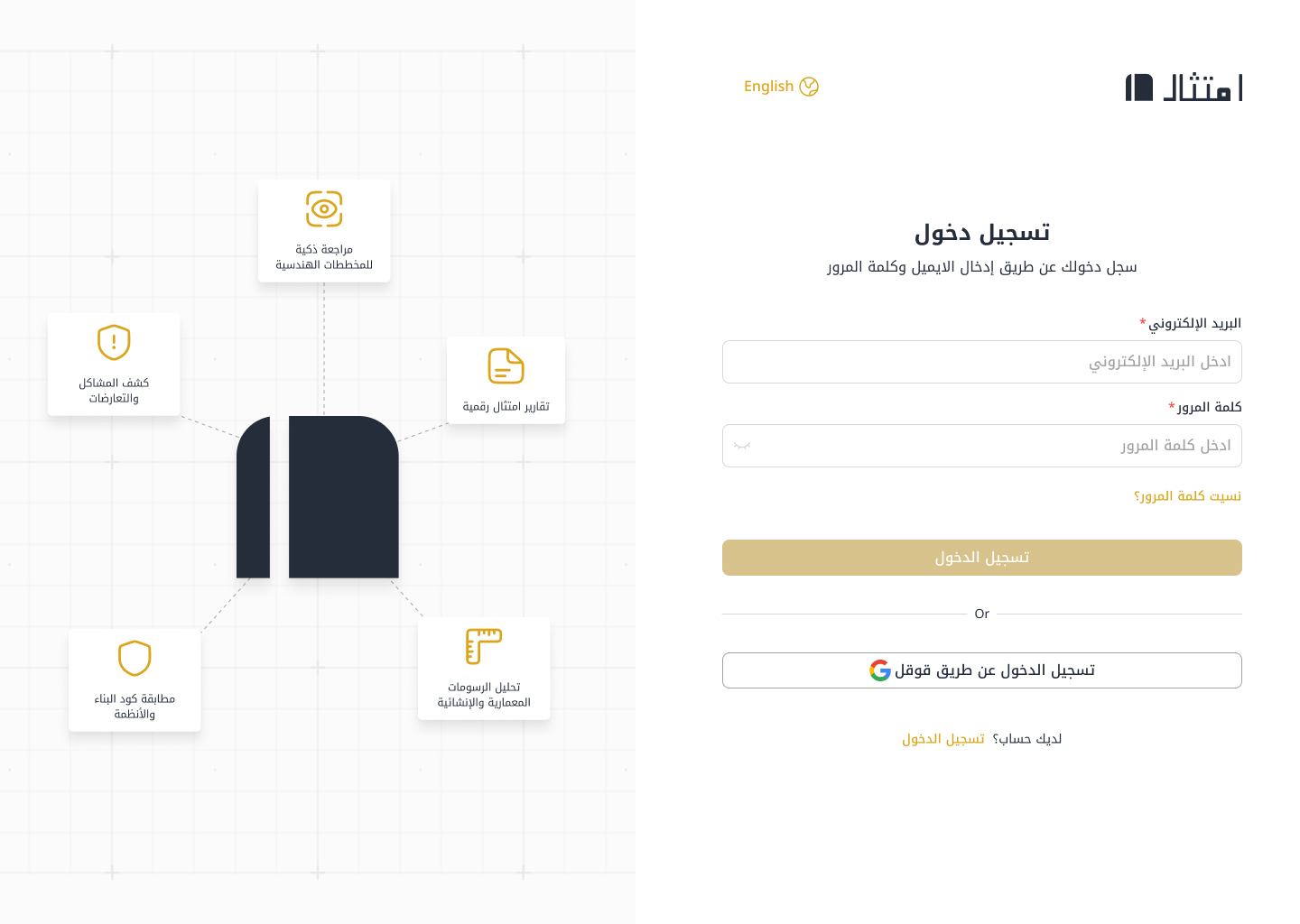
Sign in with your email and password, or via Google directly. The "Forgot password?" link lets you recover access easily.
Enter correct credentials and click "Sign In" to proceed.
An error message appears when email or password is incorrect.
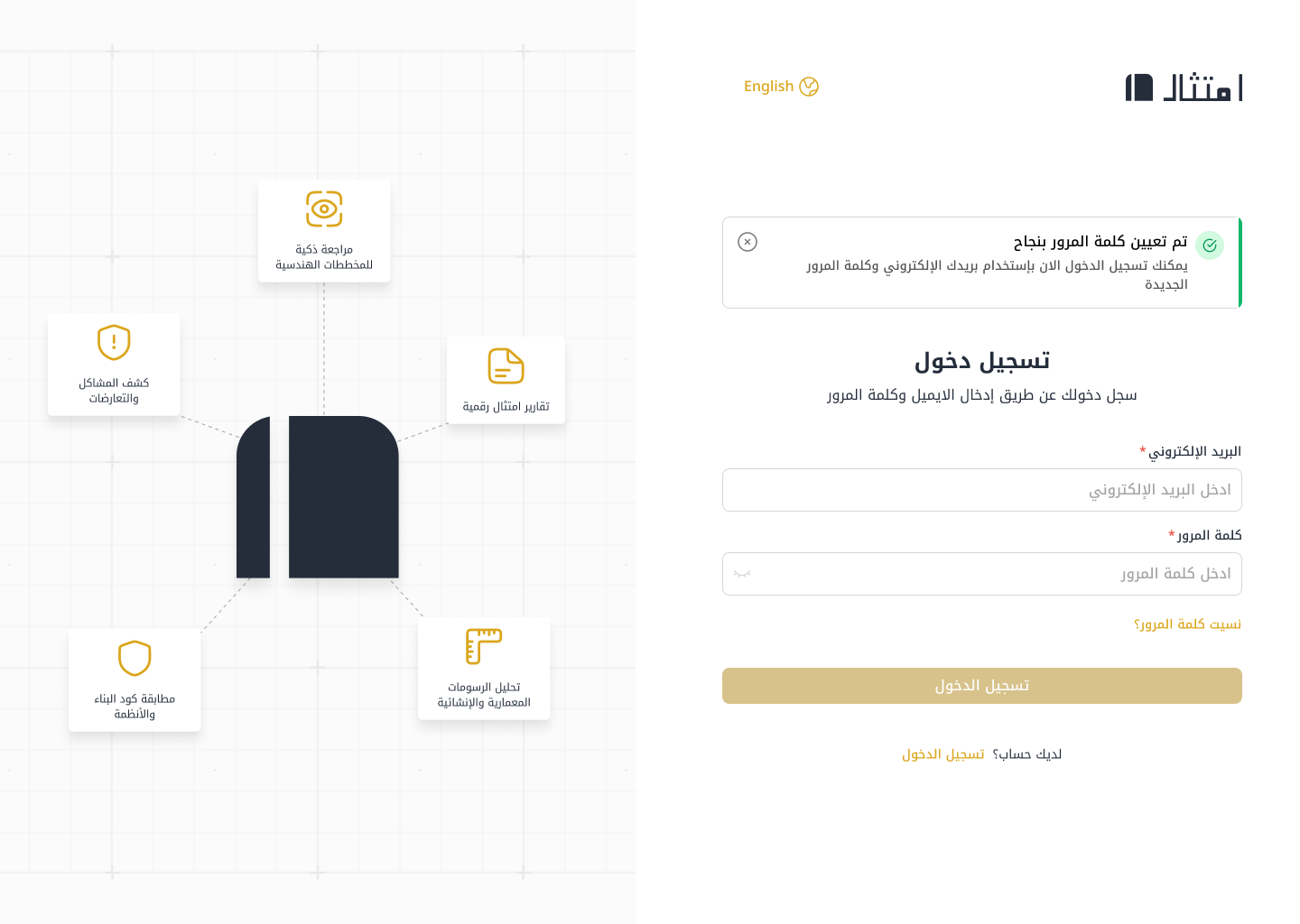
A success banner shows above the login form after resetting the password.
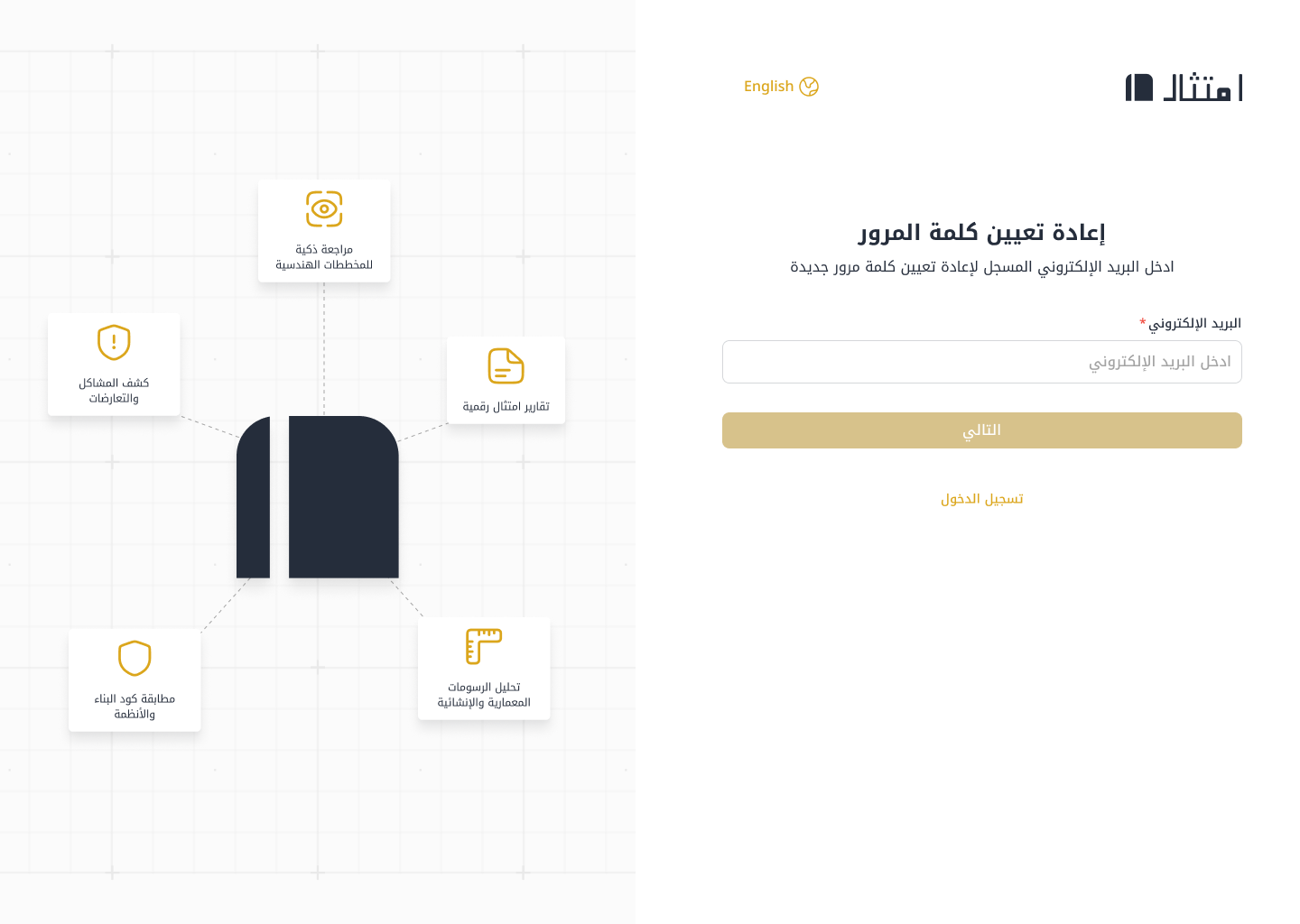
Easily reset your password if you forget it

Enter your registered email address to receive a verification code and reset your password.

After OTP verification, enter a new password, confirm it, and click "Reset".
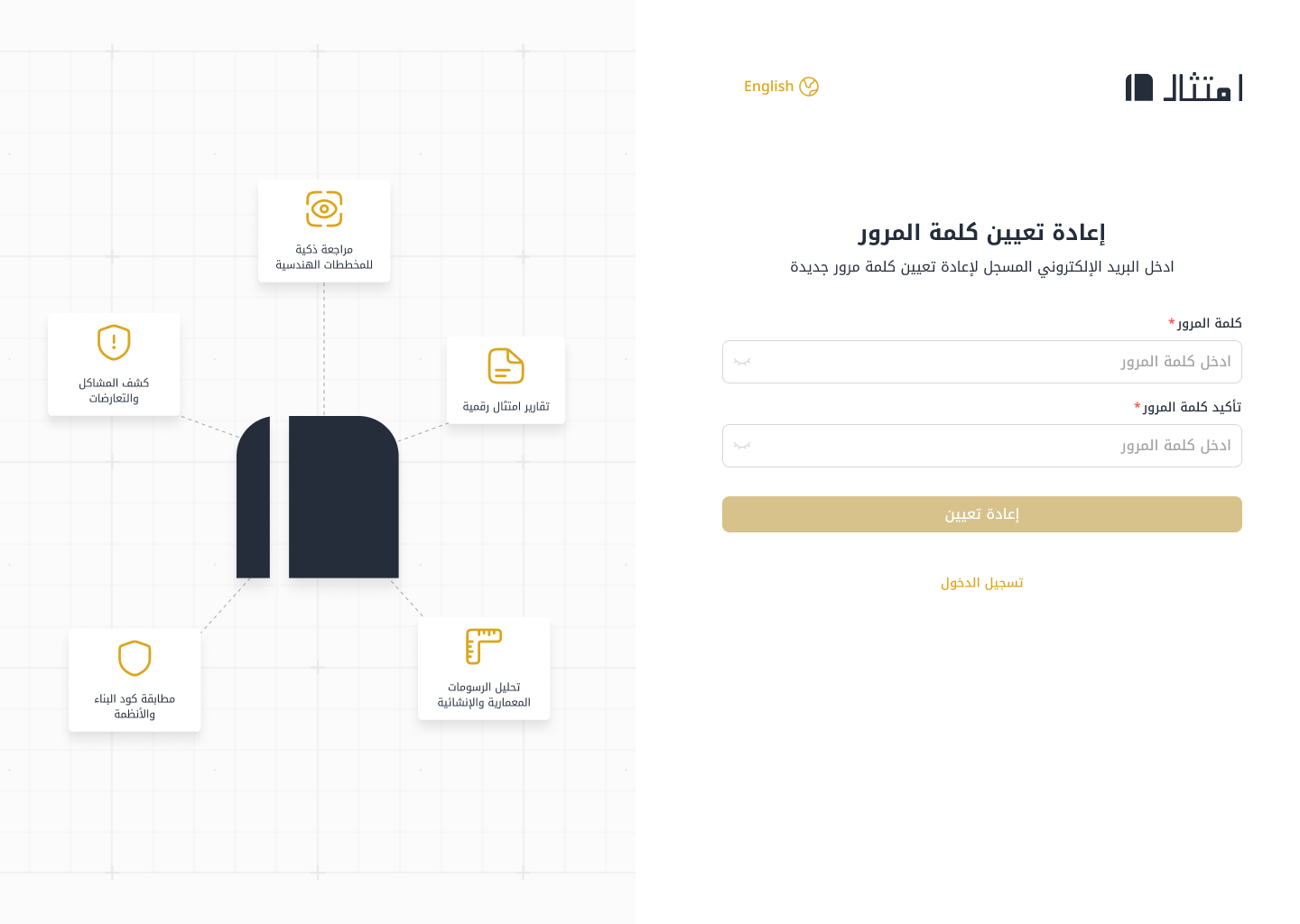
After entering the email, the verification code is sent.
Enter and confirm your new password to complete the process.
An error appears if the password and confirmation don't match.
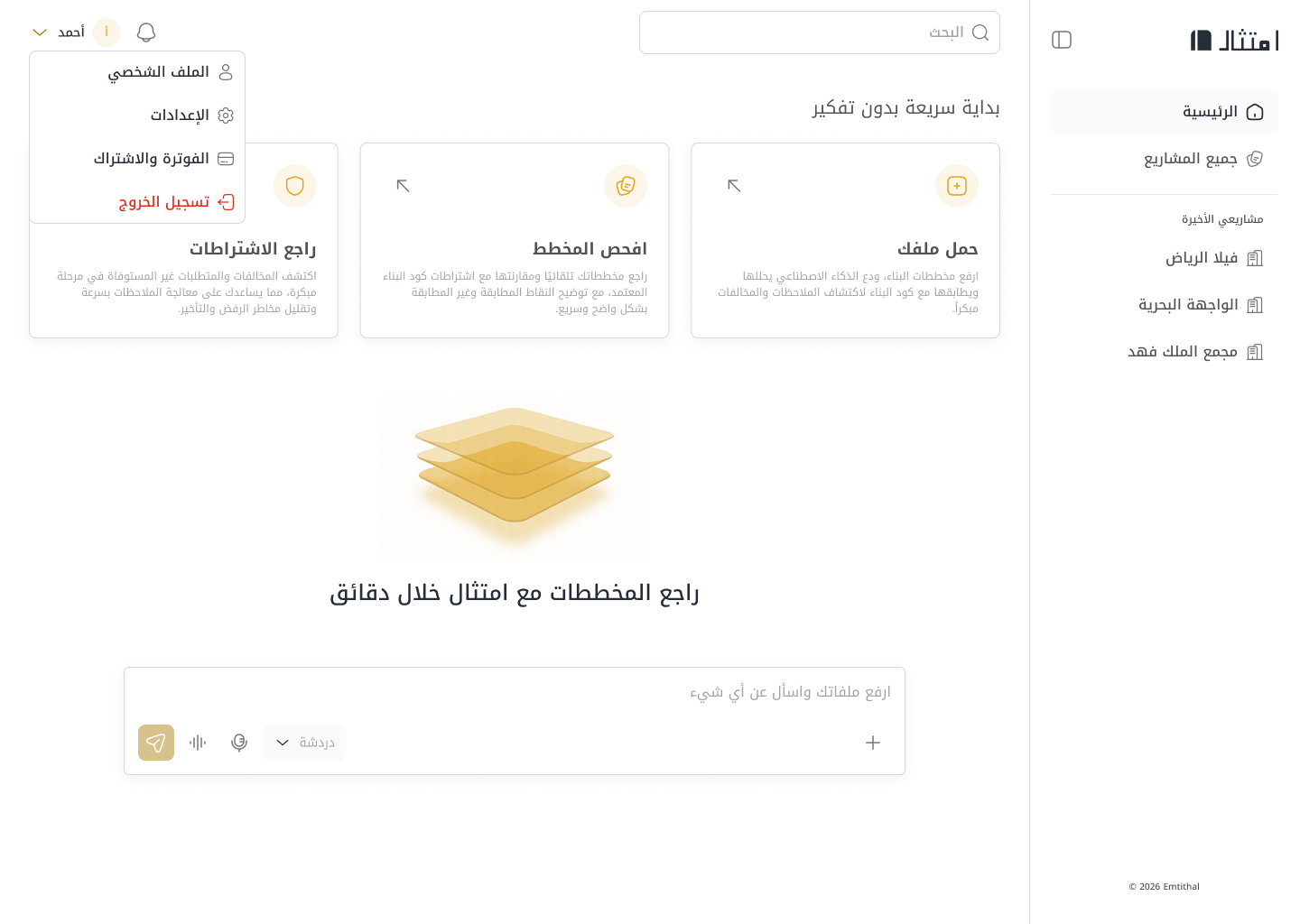
The first page after login — your starting point for all operations

Features three quick-start cards: Upload File to upload plans, Inspect Plan for automatic review, and Review Requirements to discover violations.
At the bottom, a Composer input lets you upload files and start analysis directly.
Upload your plan and let the AI do the work

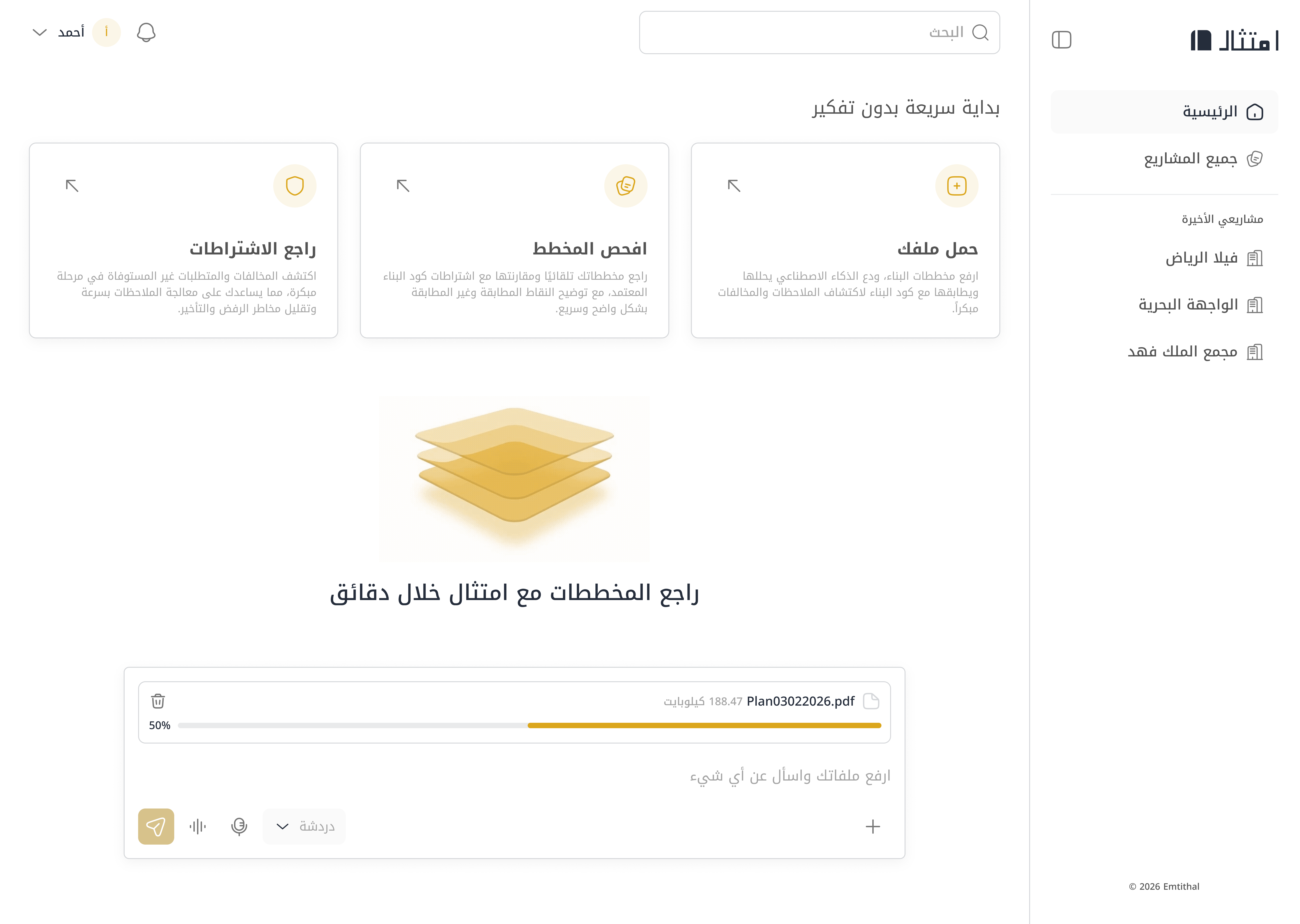
Drag and drop a file into the upload area or click (+) to select from your device. The system supports PDF, image, and DWG files.
A progress bar shows during upload, then the file appears as a chip.
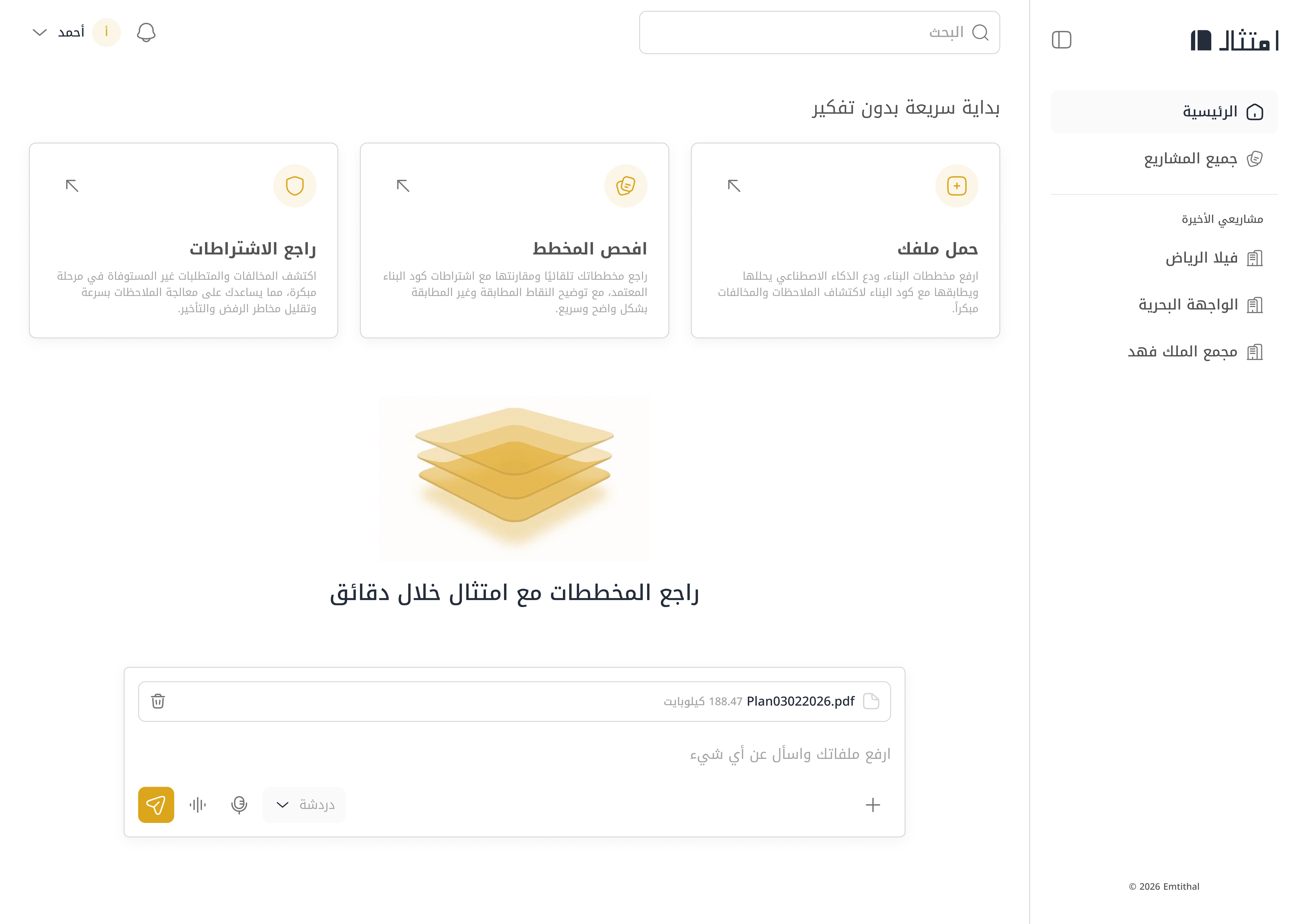
The file shows with its name and size. Click send to start analysis.
An error message appears with the option to retry.

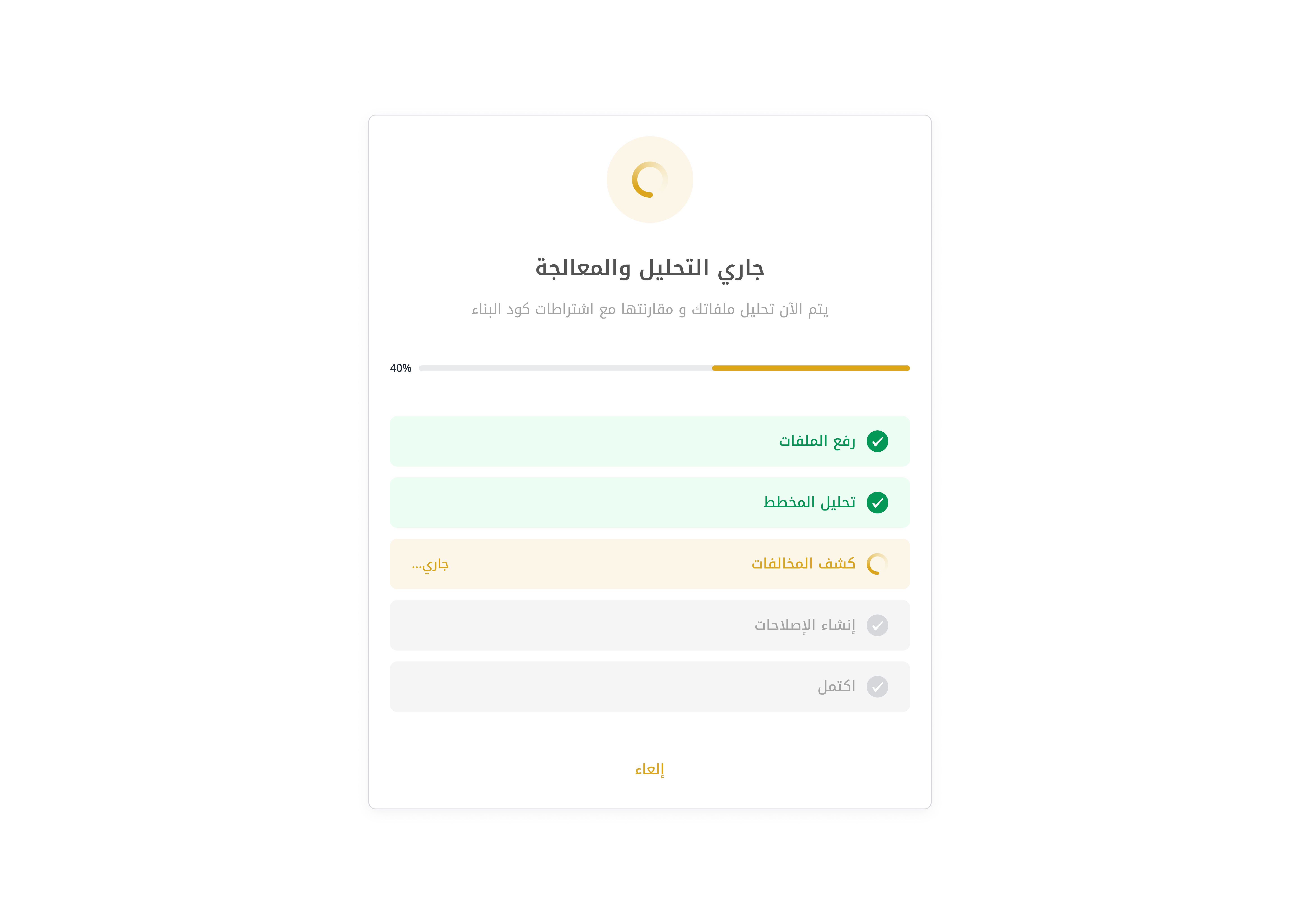
A full-screen analysis view with a progress bar and 5 sequential steps: Upload Files → Analyze Plan → Detect Violations → Generate Fixes → Complete.
An error message with the option to retry or go back.
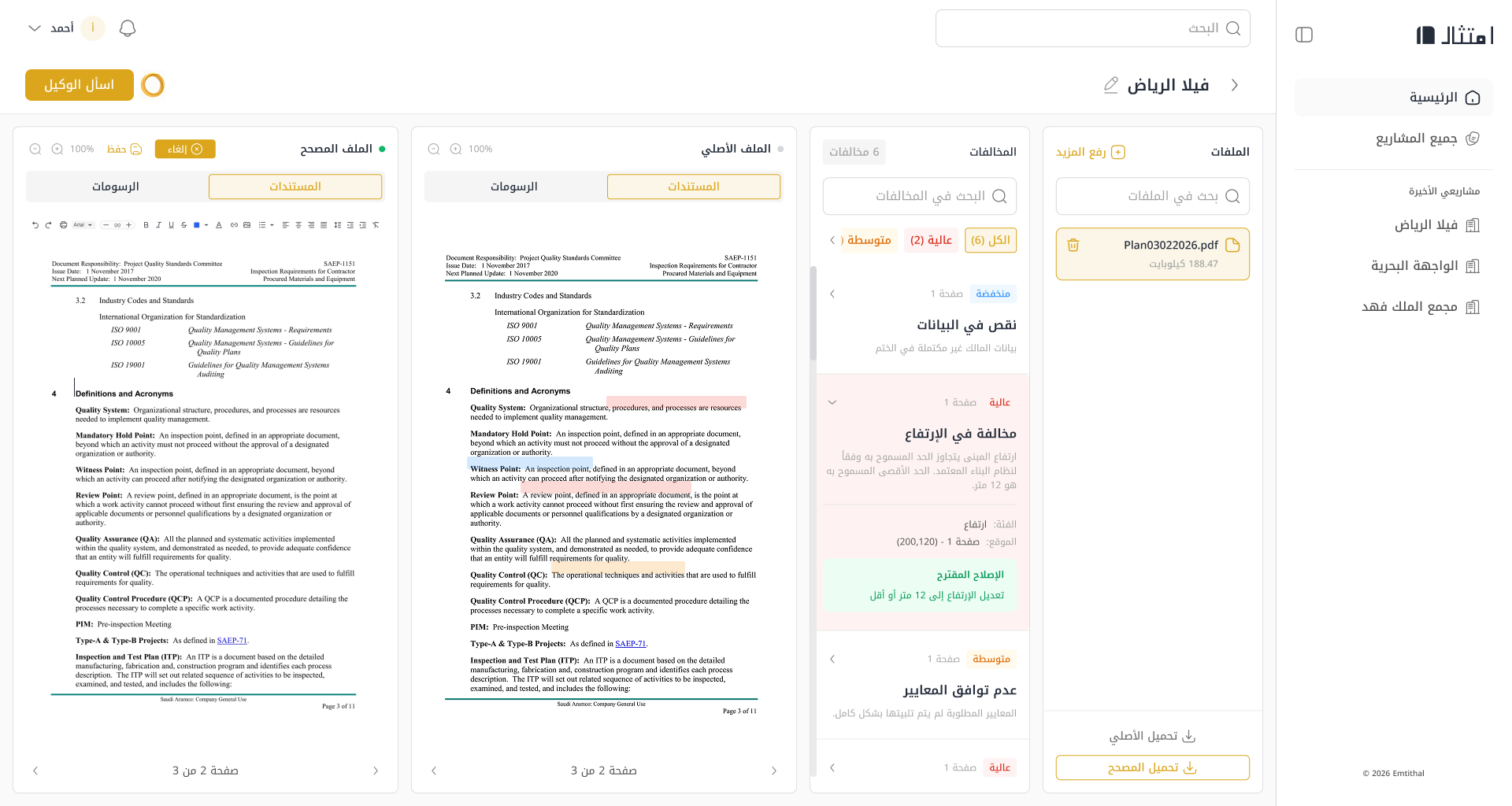
The core product — view violations, files, and the AI agent

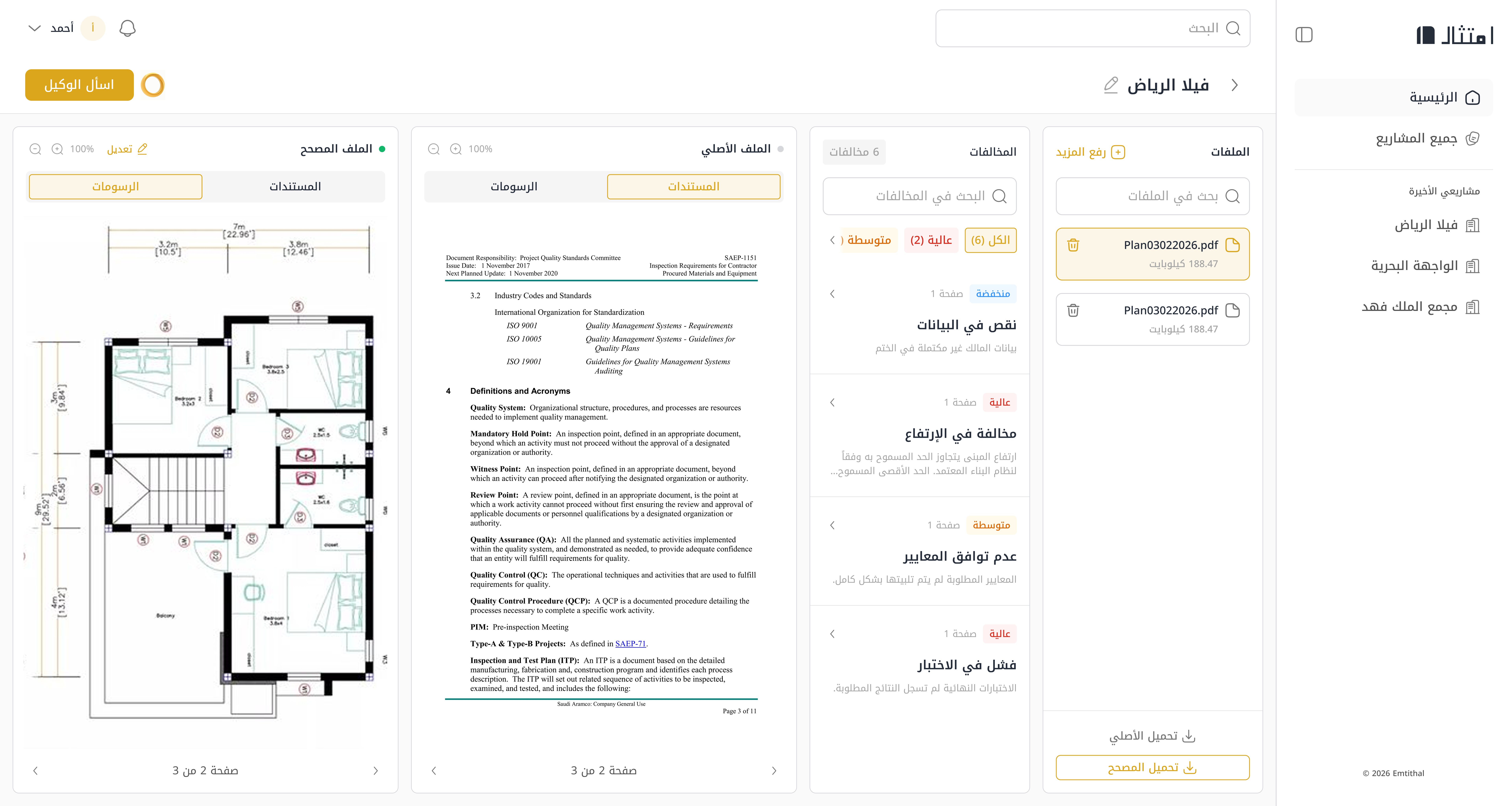
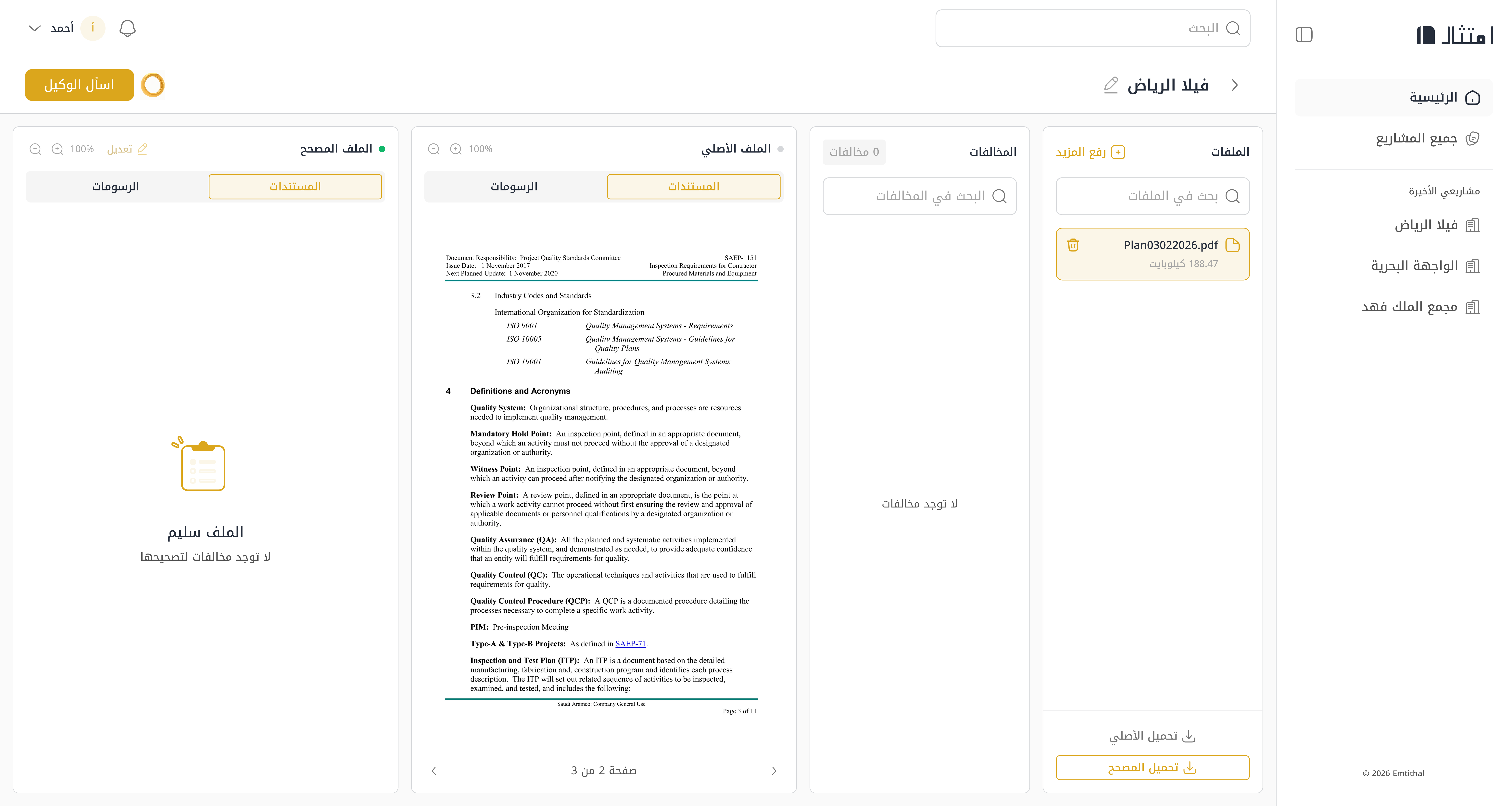
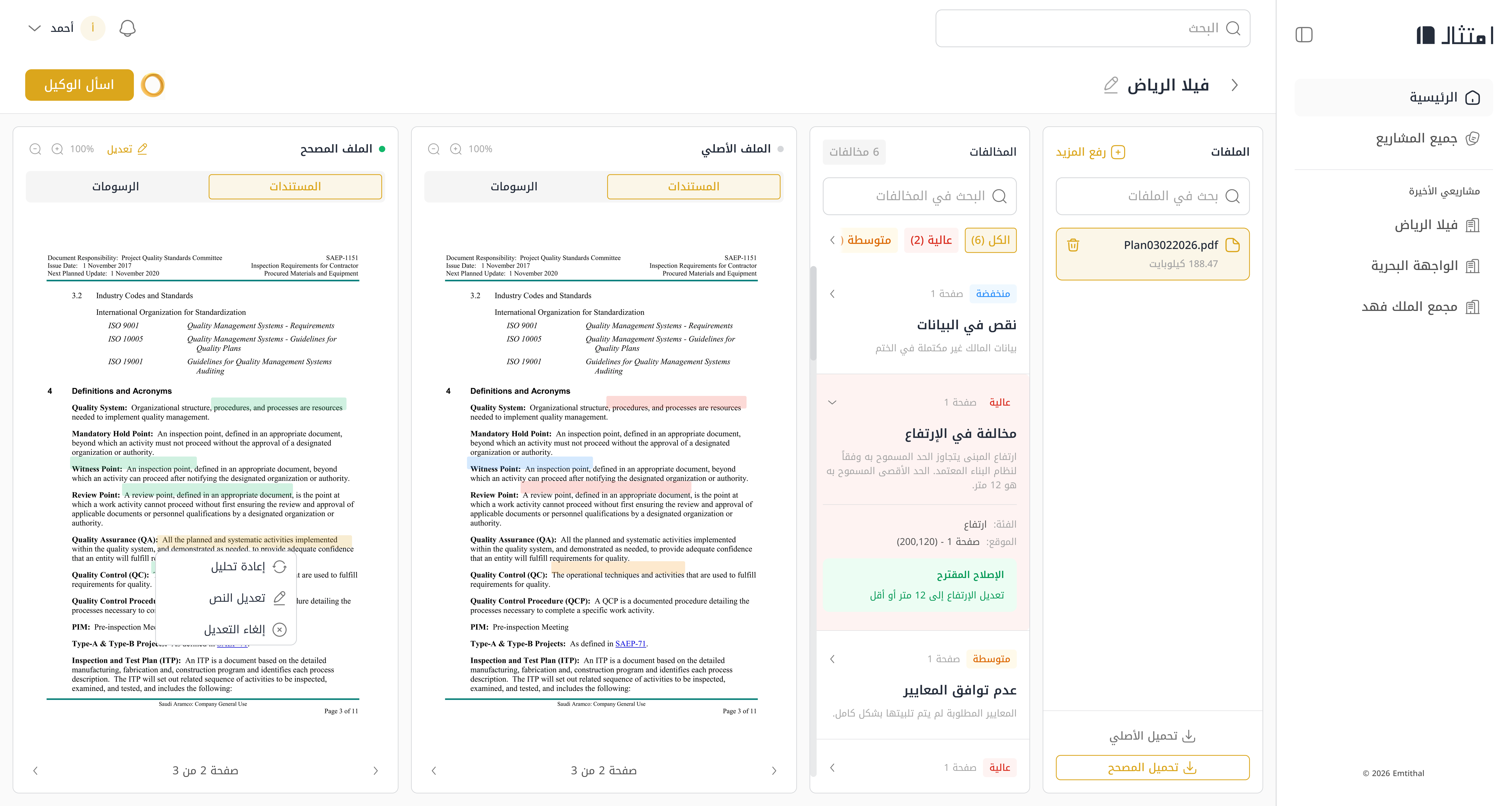
Four panels: Files Panel (far right) showing uploaded files, Violations List with search and severity filters, Original File Viewer and Corrected File Viewer side by side.
Click any violation to see details, location on the plan, and suggested fix.
Filter chips (high, medium, low) to filter by severity level.
Full category, location, and suggested fix for each violation.

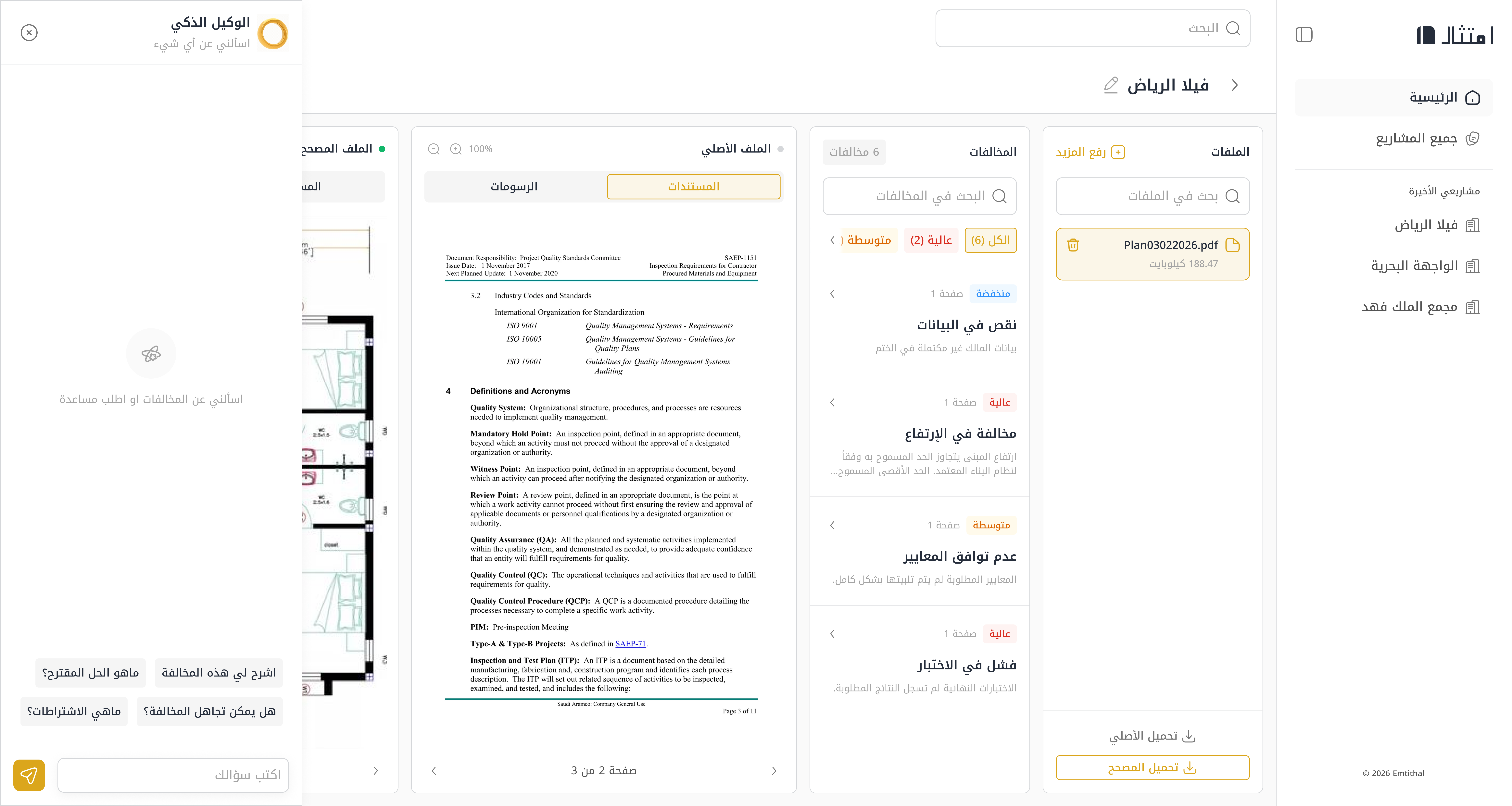
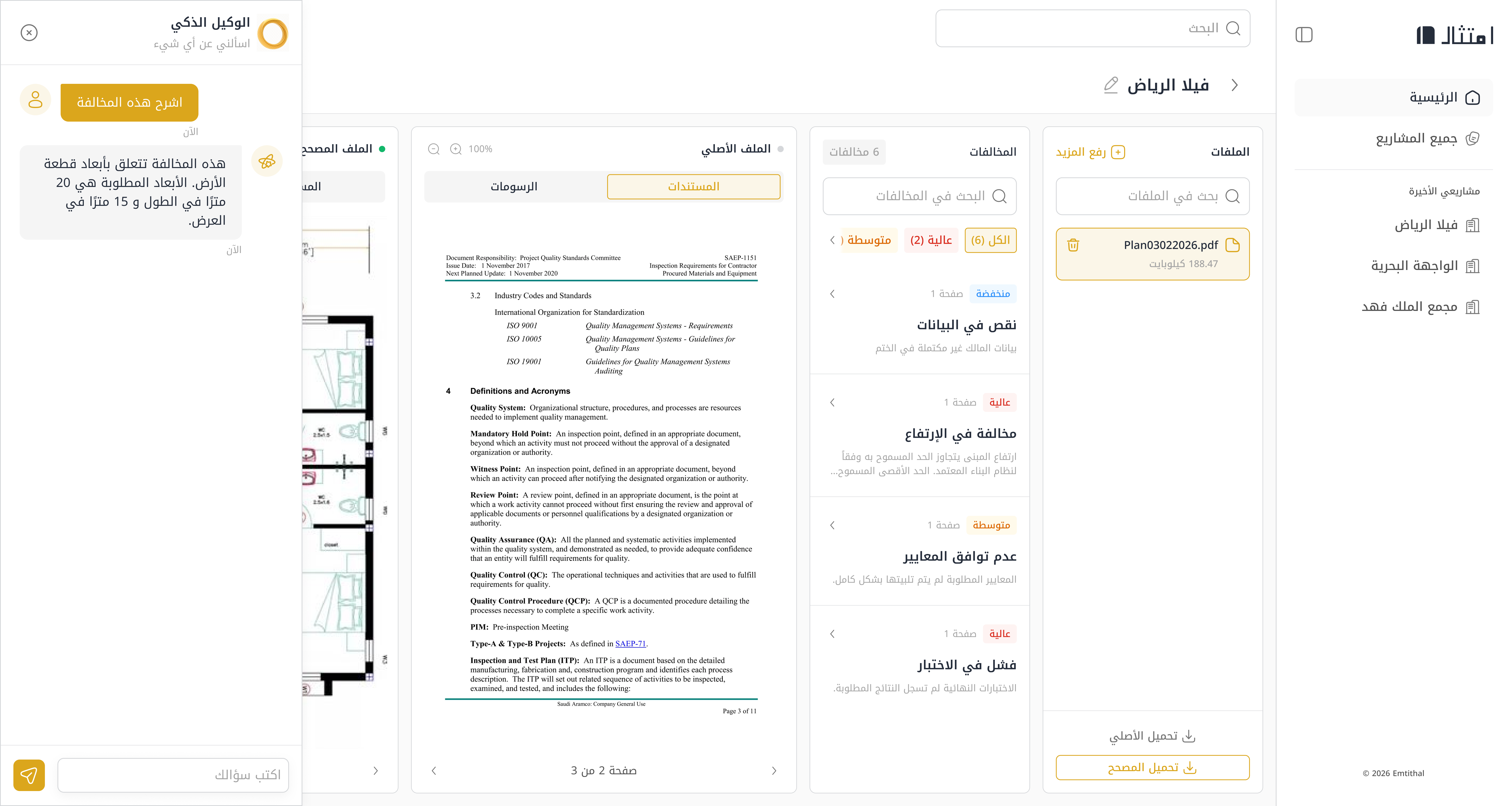
Click "Ask Agent" to open the AI chat panel. Ask about any violation and get a detailed explanation with references from the Saudi Building Code.
Structured answers with sources, analysis, suggested fixes, and confidence scores.

Switch to edit mode to modify the plan directly within the platform, with a full toolbar and undo/redo support.
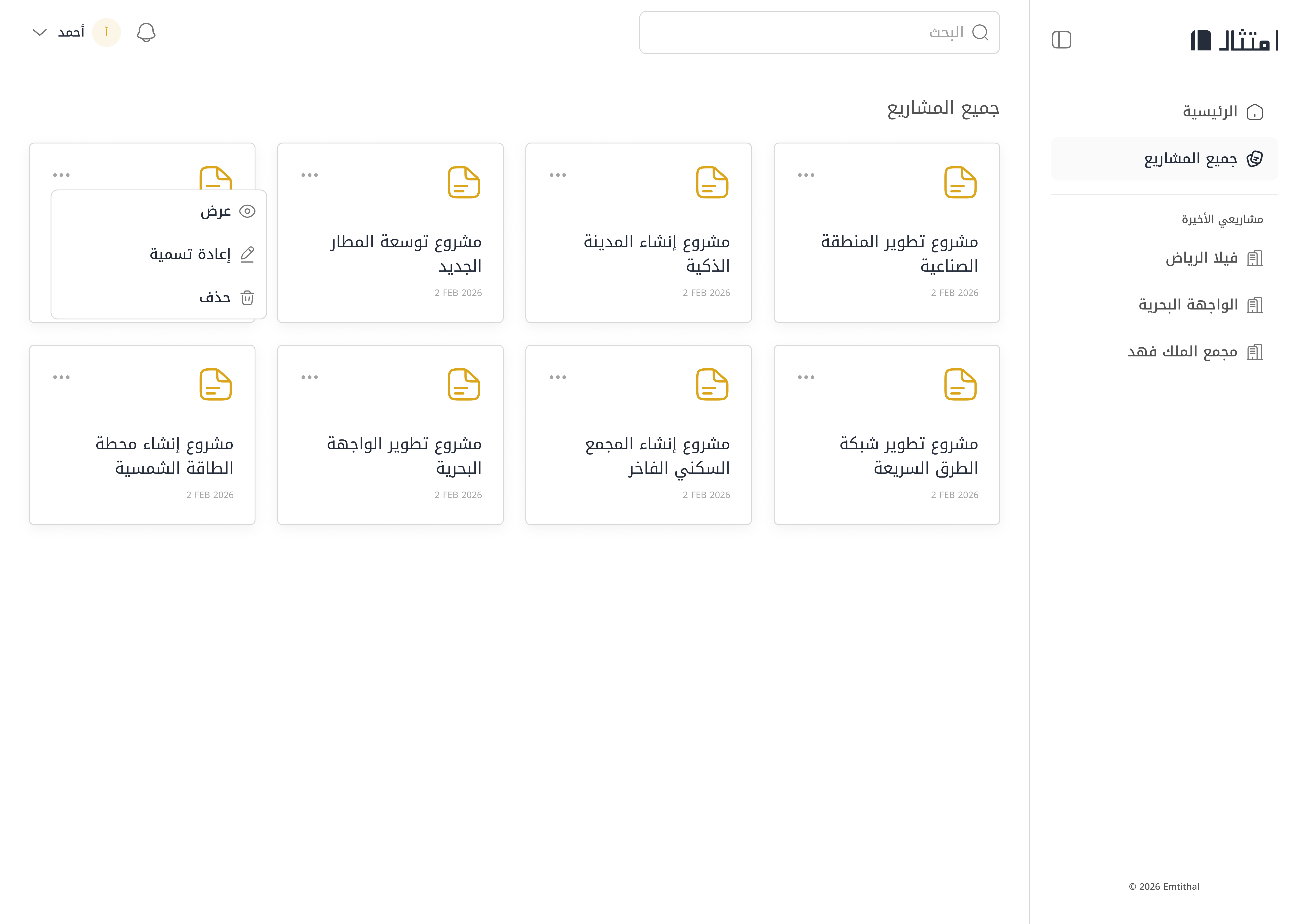
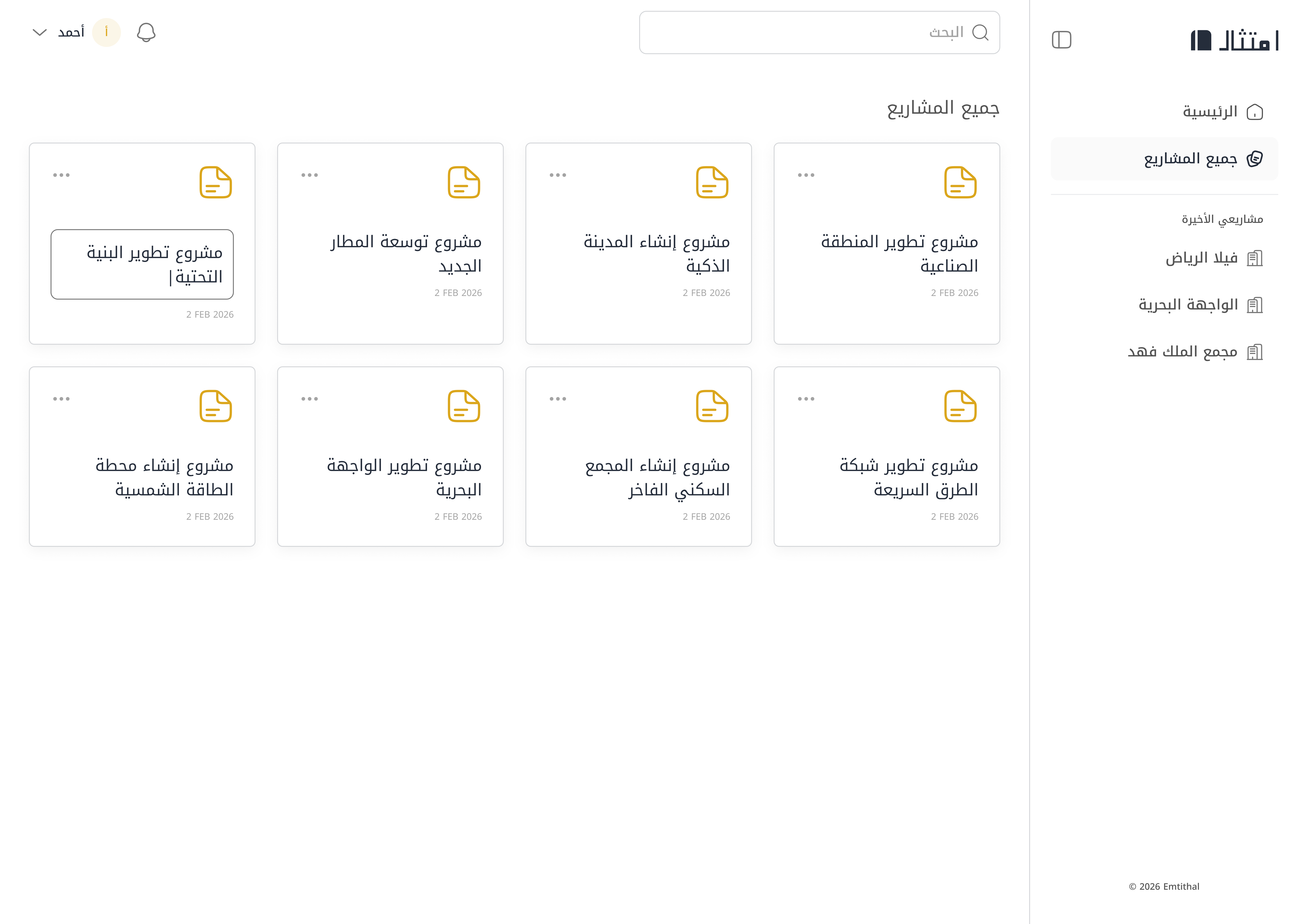
View and manage all your projects in one place

A card grid showing all your projects with name and creation date. The dropdown menu (⋯) lets you view, rename, or delete projects.
A guidance message with a button to return to the home page.
A dialog to change the project name.
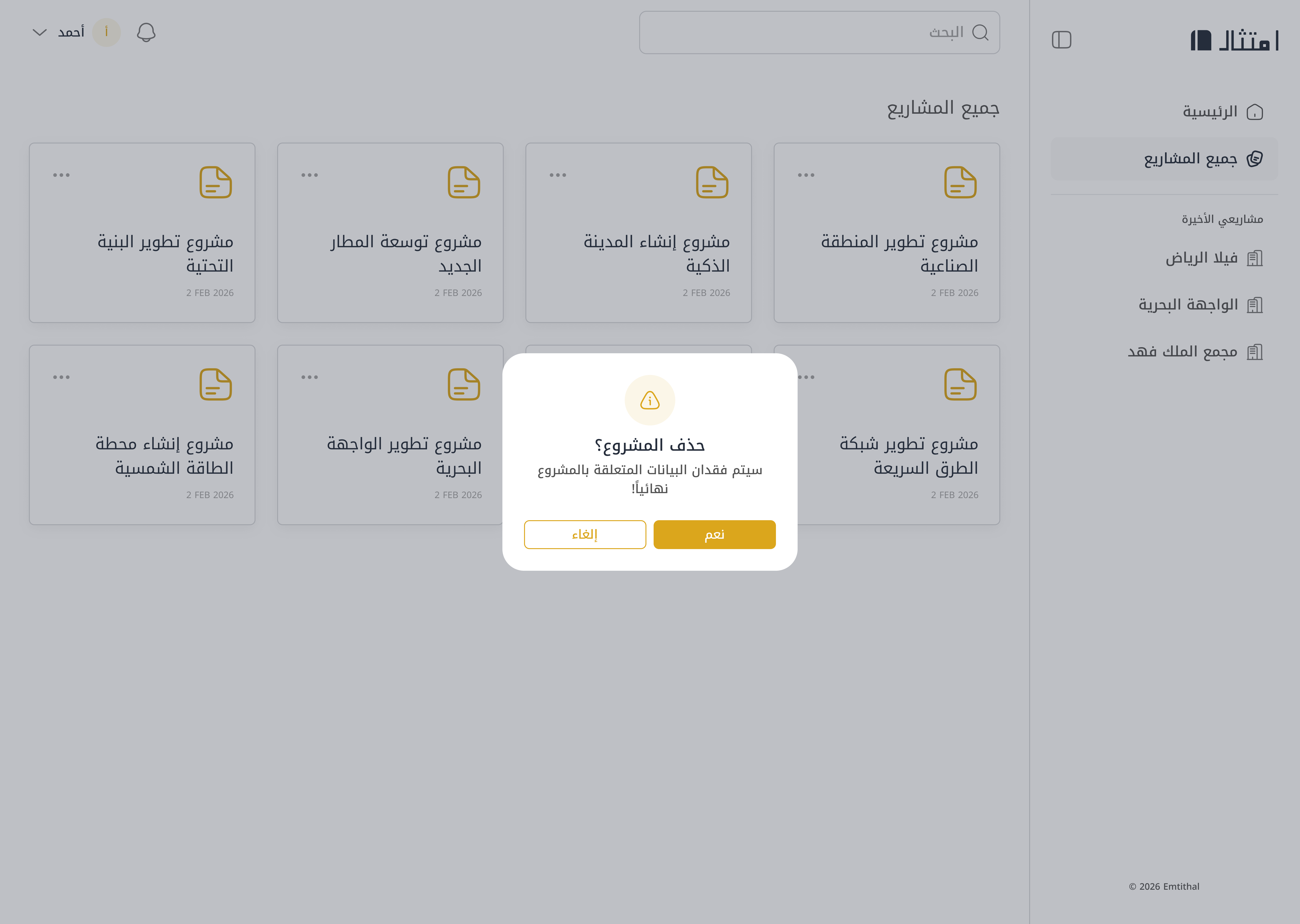
A confirmation dialog before permanently deleting a project.
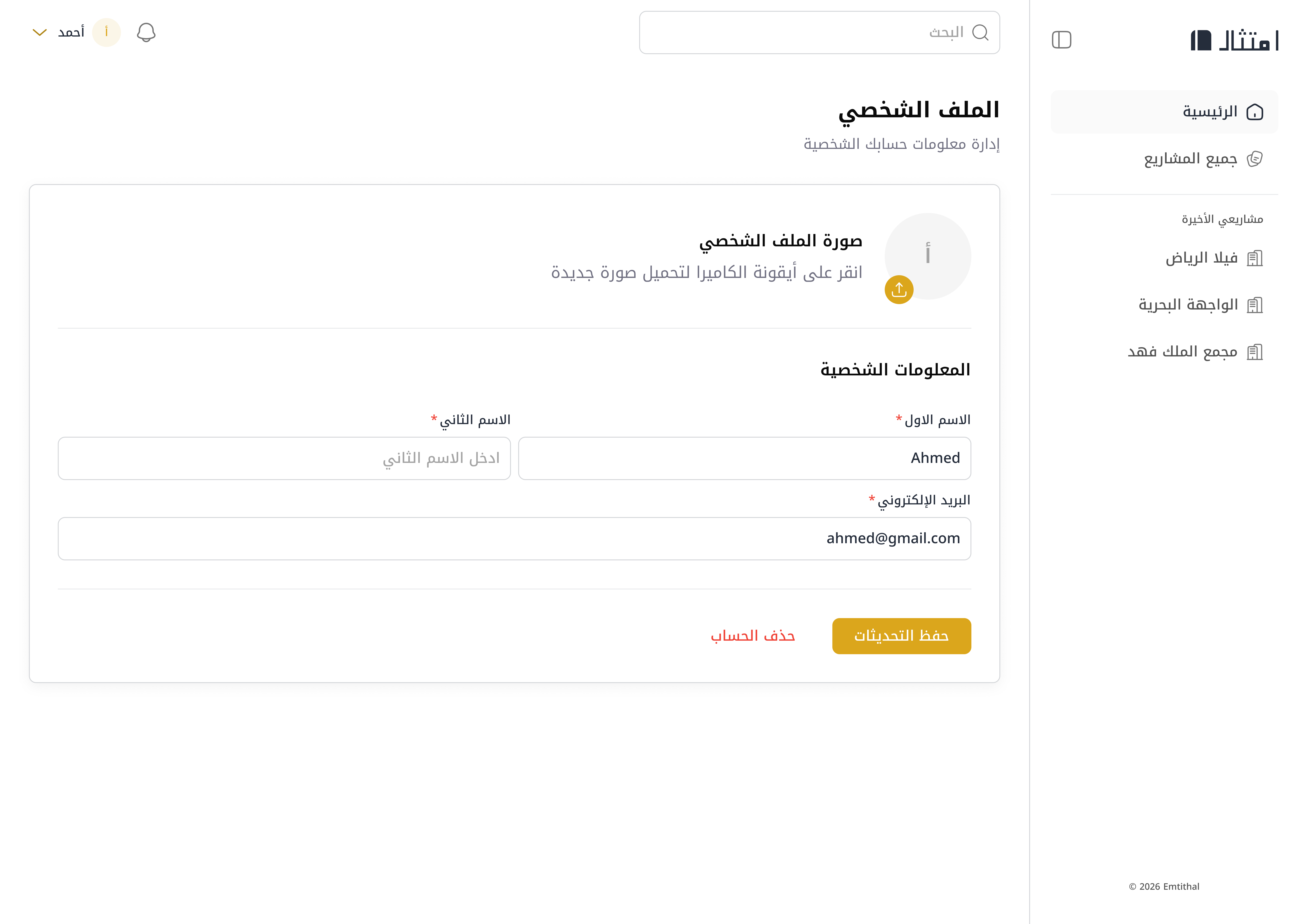
Manage your personal data, security settings, and preferences

View and edit your profile photo, name, and email address. You can save updates or permanently delete your account.
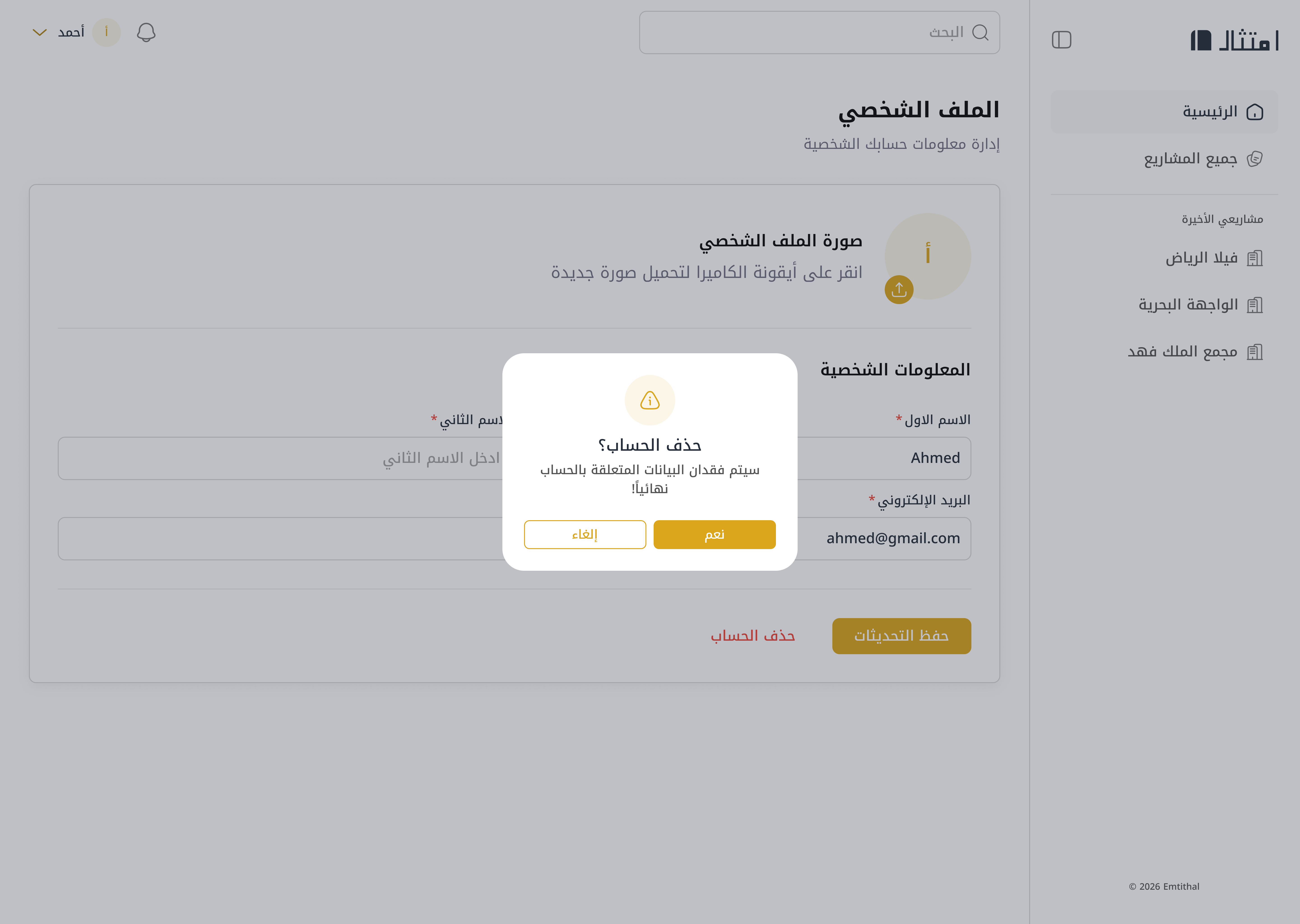
A confirmation dialog for permanent account deletion with a warning.

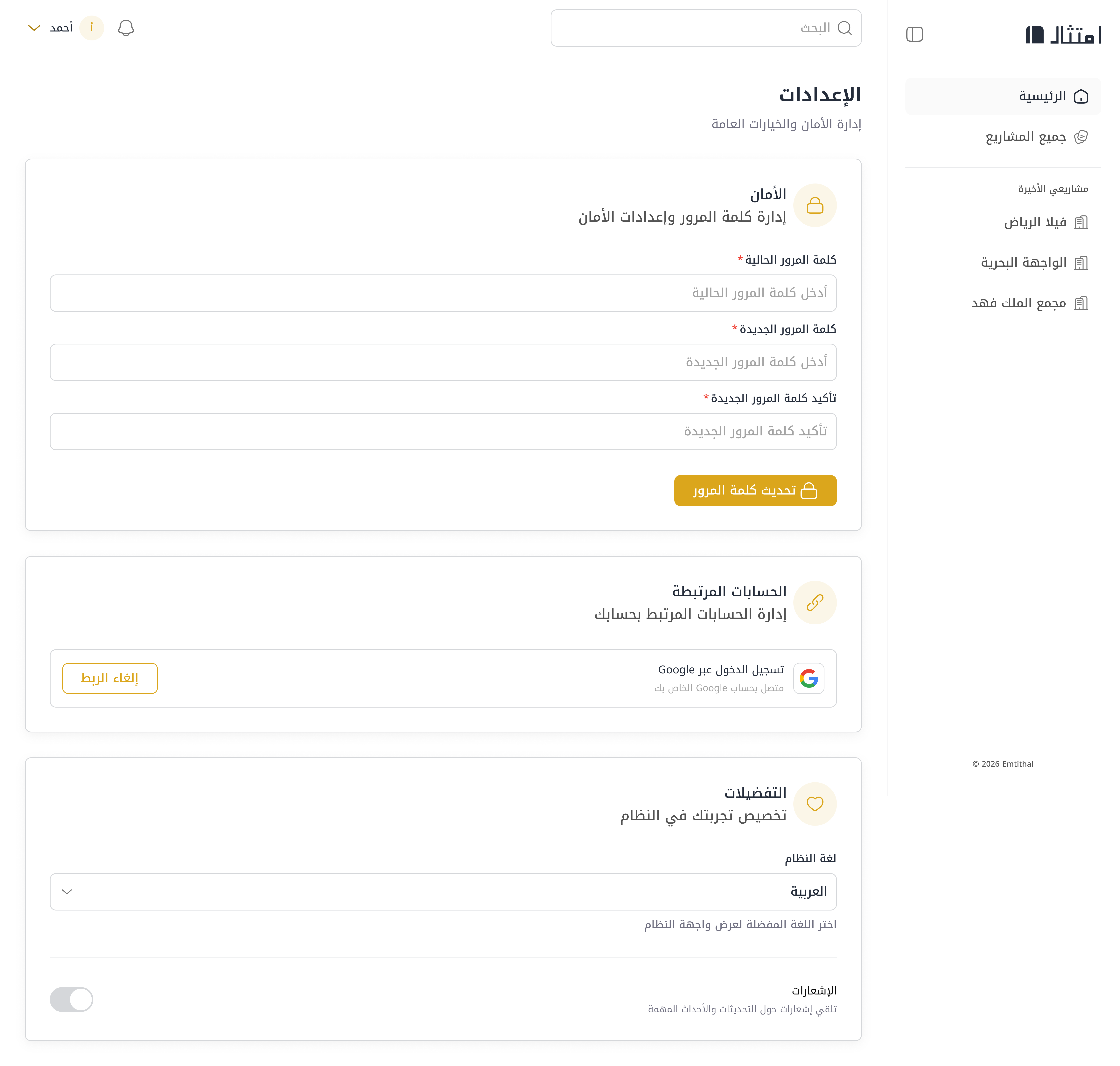
Three sections: Security for changing your password, Linked Accounts for managing Google integration, and Preferences for language selection and notifications.
Manage your plan, invoices, and payment methods

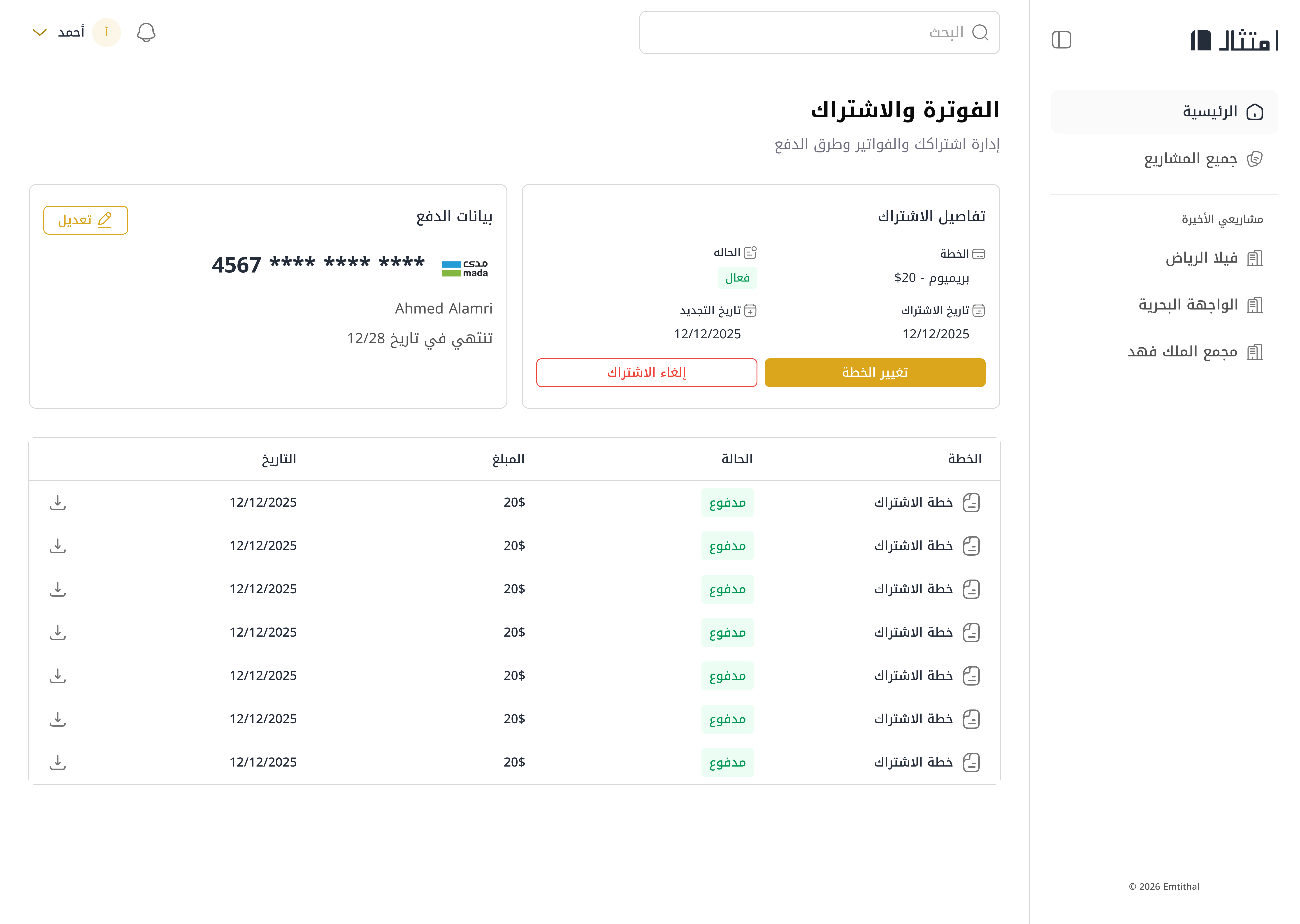
Shows your current subscription details (plan, status, renewal date), payment information, and a complete invoice history table.
When there's no active subscription, a button to choose a plan appears.
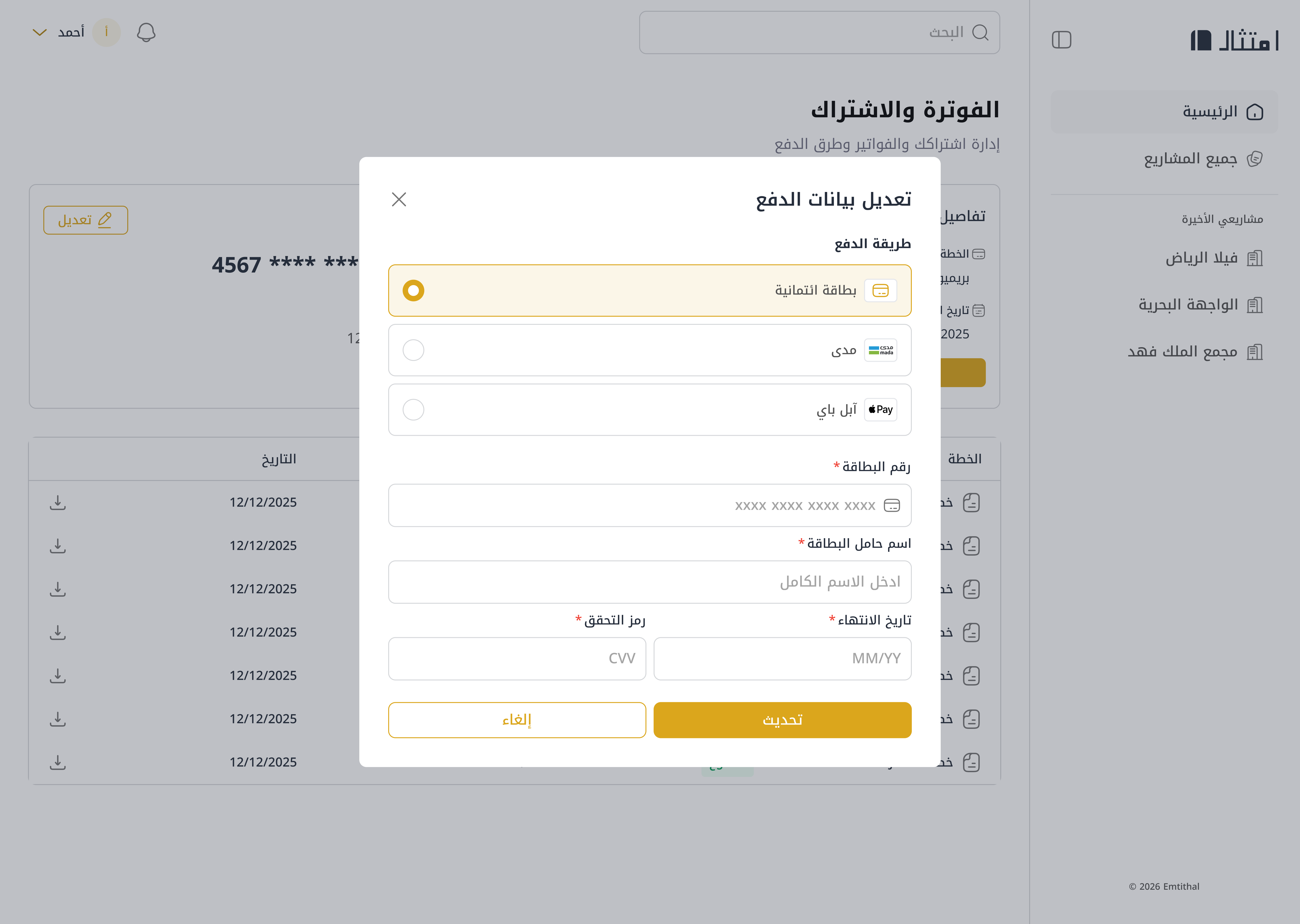
A dialog to update card number and details.

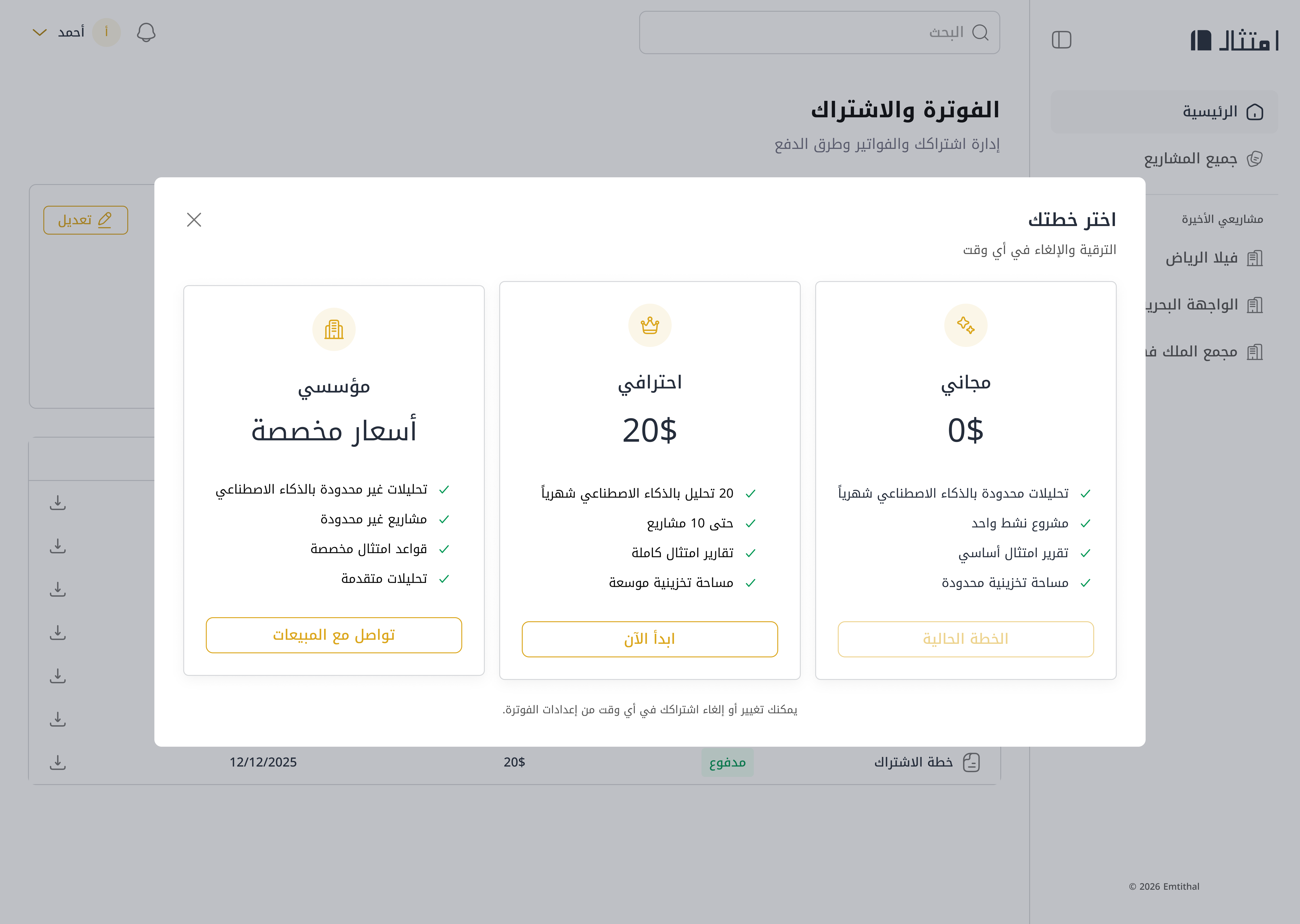
Three plans: Free (1 project), Pro ($20/month — 10 projects), and Enterprise (custom pricing — unlimited).